

Register as a Tester
For individual testers (self-employed).
Company Admin managing multiple testers? See Company Profile Admin guide
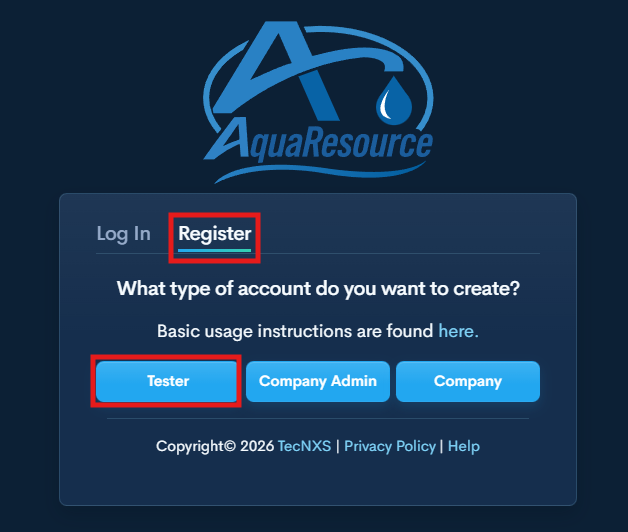
Step 1 — Create Your Account
Go to the AquaResource login page - Here.
Click Register → select Tester.
Enter your information and click Register.
You will be automatically logged in.
Step 2 — Verify Your Email
Open the verification email and click Verify Email.
Required before requesting access to any utility.

Step 3 — Upload Required Documents
Top Menu → Documents
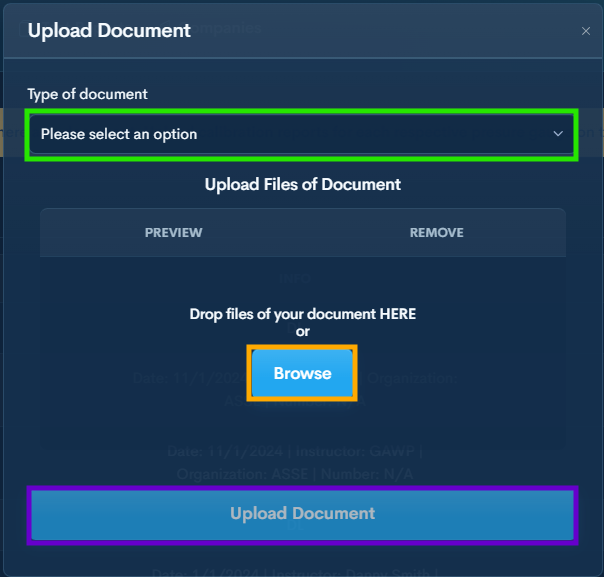
Click +Document and upload your Backflow Testing Certificate
Set document type to Certificate
Browse to open your file explorer
Once the file is selected click Upload Document

Step 4 — Add Pressure Gauge
Top Menu → Pressure Gauges
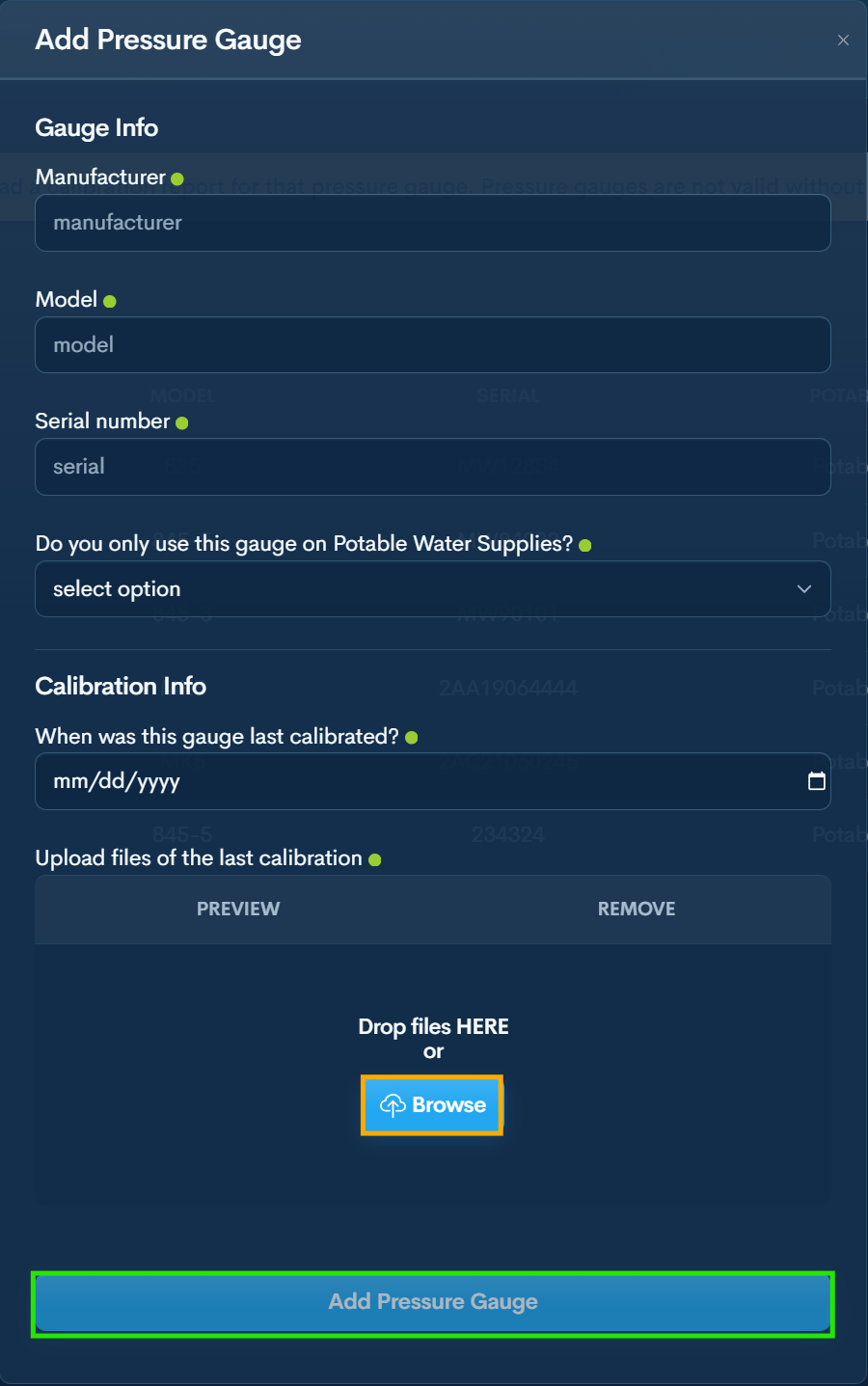
Click + Pressure Gauge
Enter pressure gauge details
Browse to open your file explorer
Once the file is selected click Add Pressure Gauge
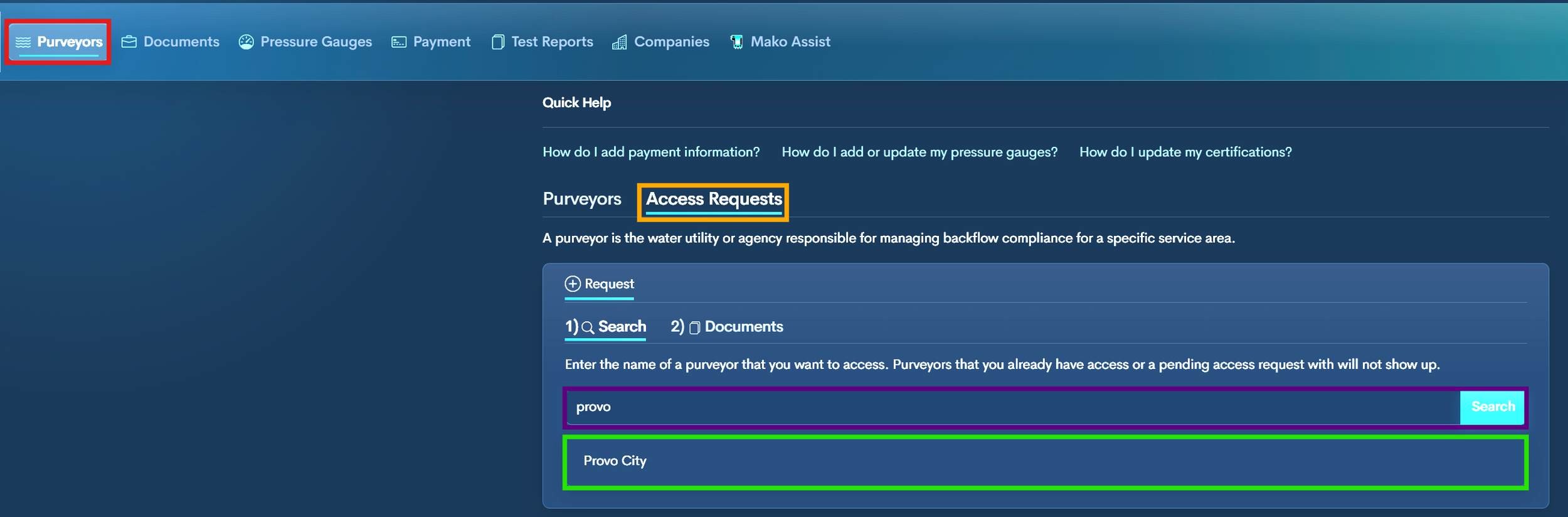
Step 5 — Request Access to a Utility
Top Menu → Purveyors → Access Requests
Search and Select the Utility
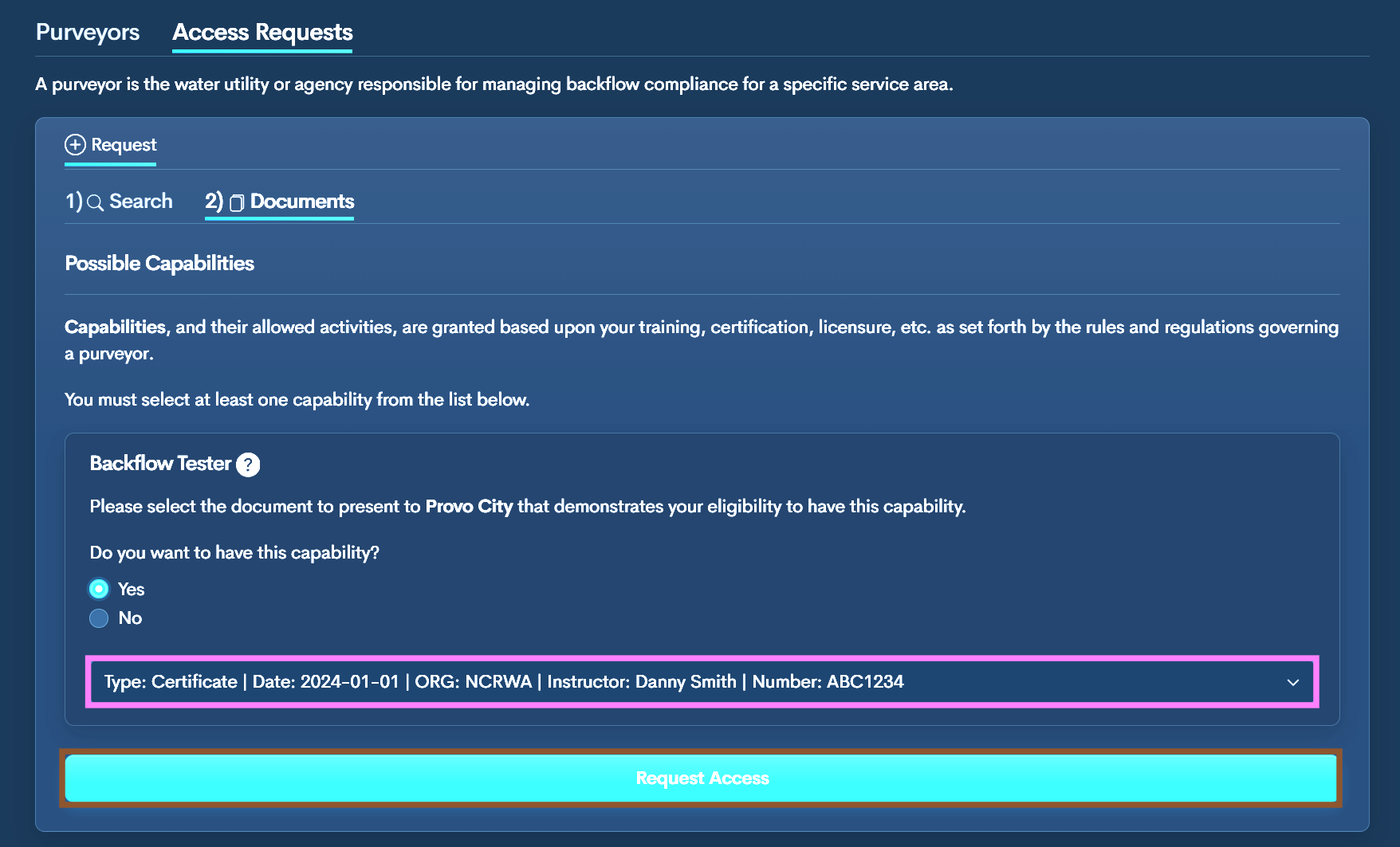
Select Yes for Backflow Tester
Choose your certificate from the dropdown
Click Request Access
Utility must approve before you can submit reports.

Step 6 — Add Company (Optional)
Top Menu → Companies → +Company
Enter company information and save
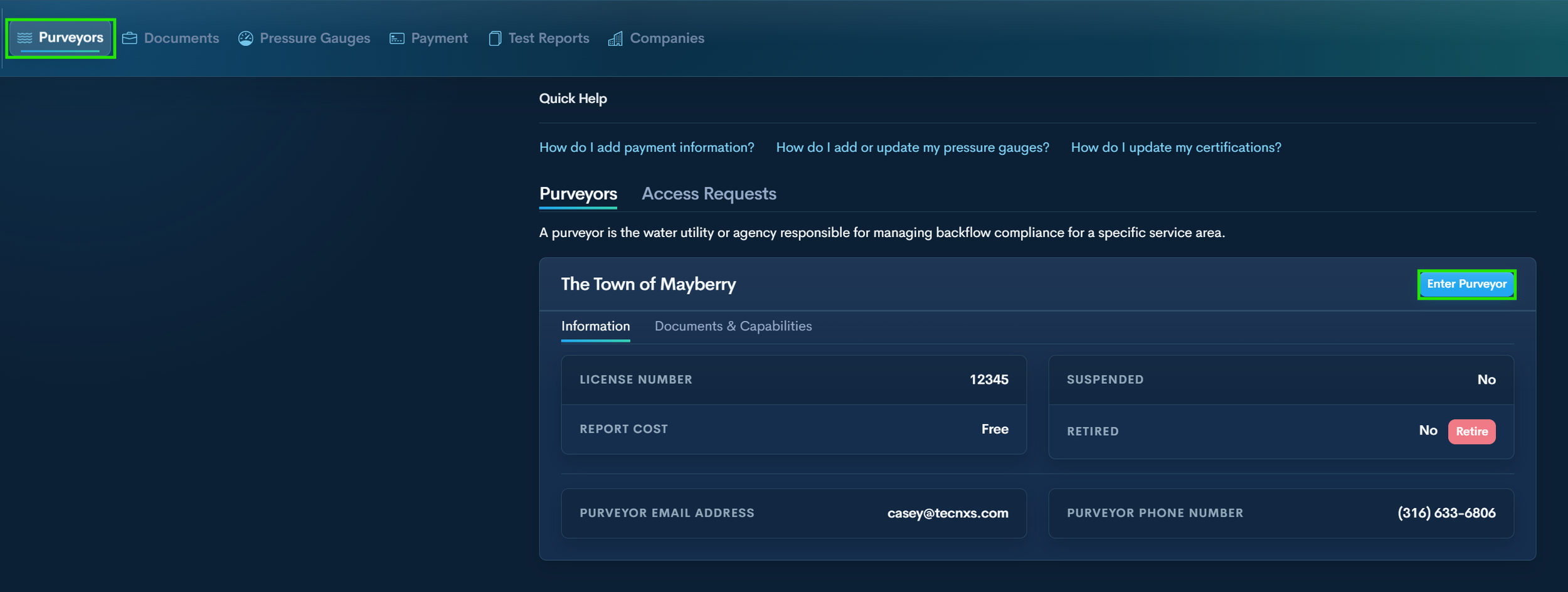
Step 7 — After approval by the utility Add Payment Method (If Required)
Top Menu → Purveyors→ Enter Purveyor
Click Enter Purveyor
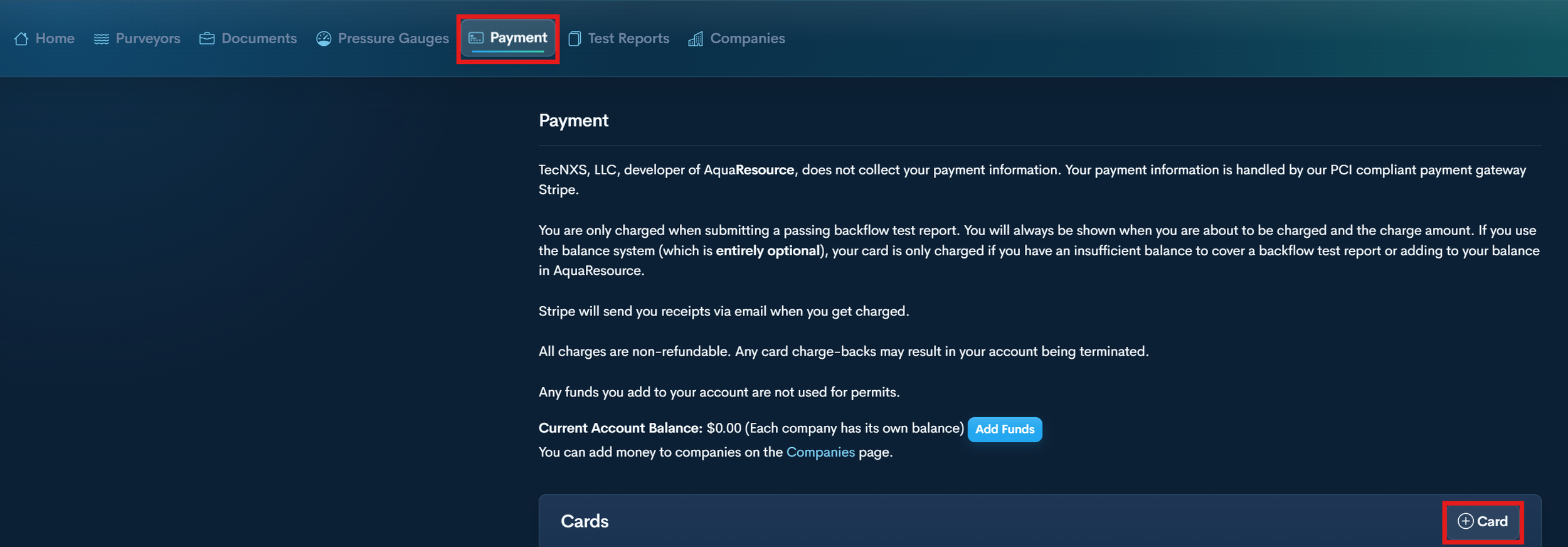
Top Menu → Payment
Click +Card to add card details.
Assign to company if needed
