

How to Submit a Test Report
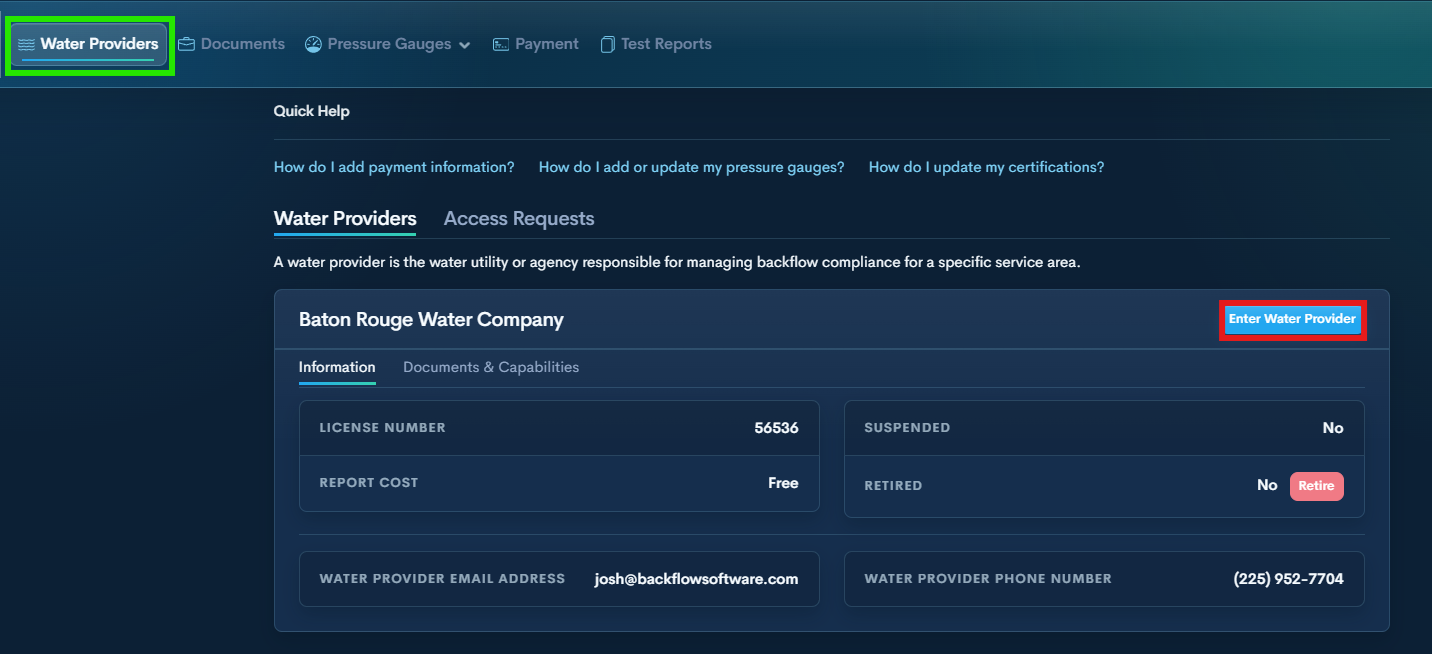
Step 1 — Enter Water Provider
In the Water Providers section, click Enter Water Provider on desired Utility.
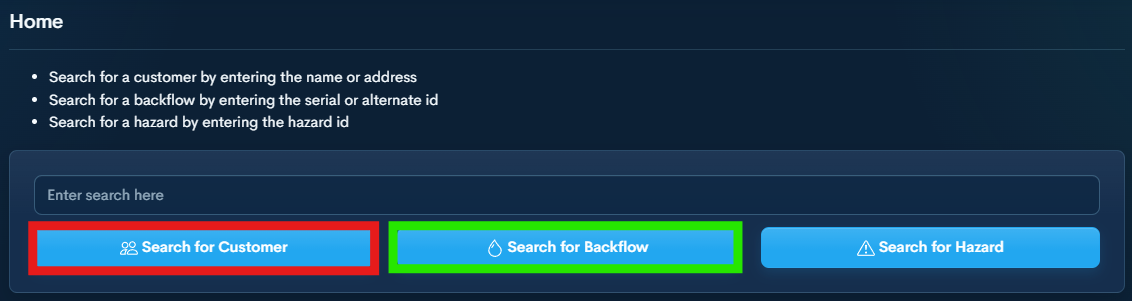
Step 2 — Search by Customer Name, Address, or Device Serial Number
Enter your search in the search bar, then choose:
Search for Customer will allow you to see all devices under that address. Then you will select the device you are looking for.*
Search for Backflow will pull up the existing device, selecting it will reveal the options for that device.
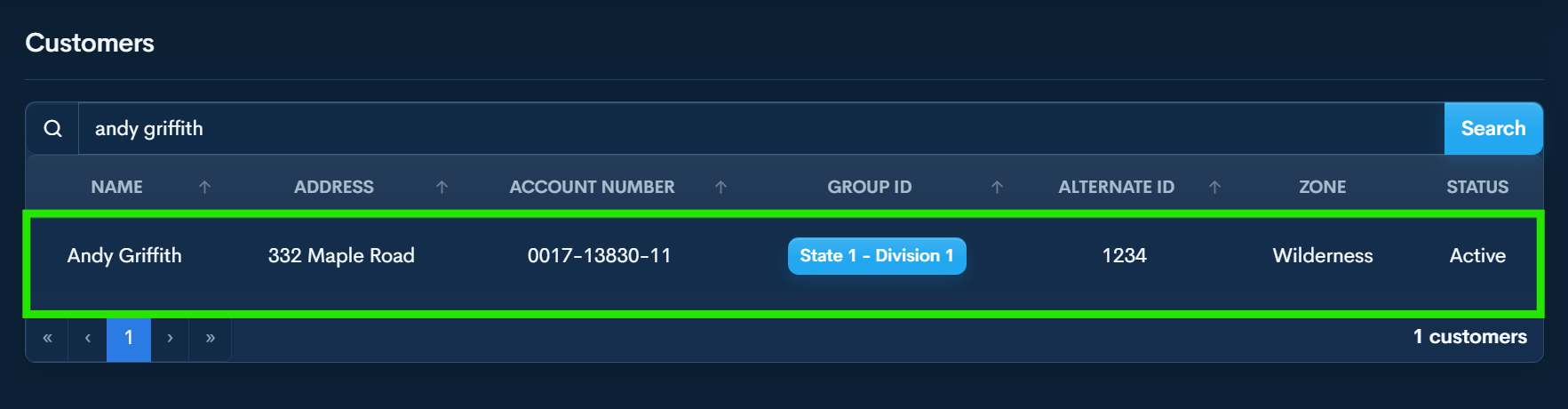
Step 3 — Open the Record
Click the correct result to open the customer/address page.
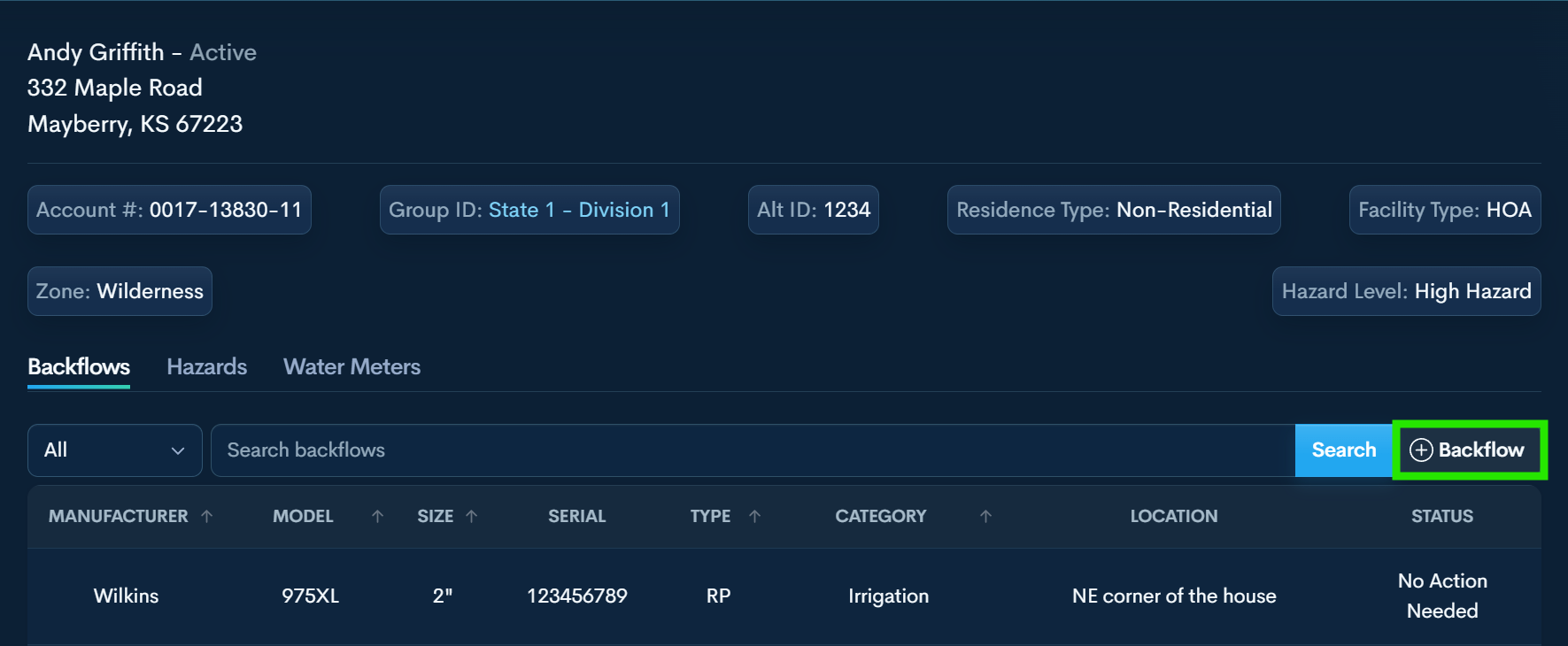
Step 4 — Add Device (If Needed)
If missing and allowed:
Click +Backflow, enter details, then Add Device.
Select the new device.
Do NOT use this when replacing a device.
If you are replacing a device, use “Removed and Replaced Device” in the report type through the old device.
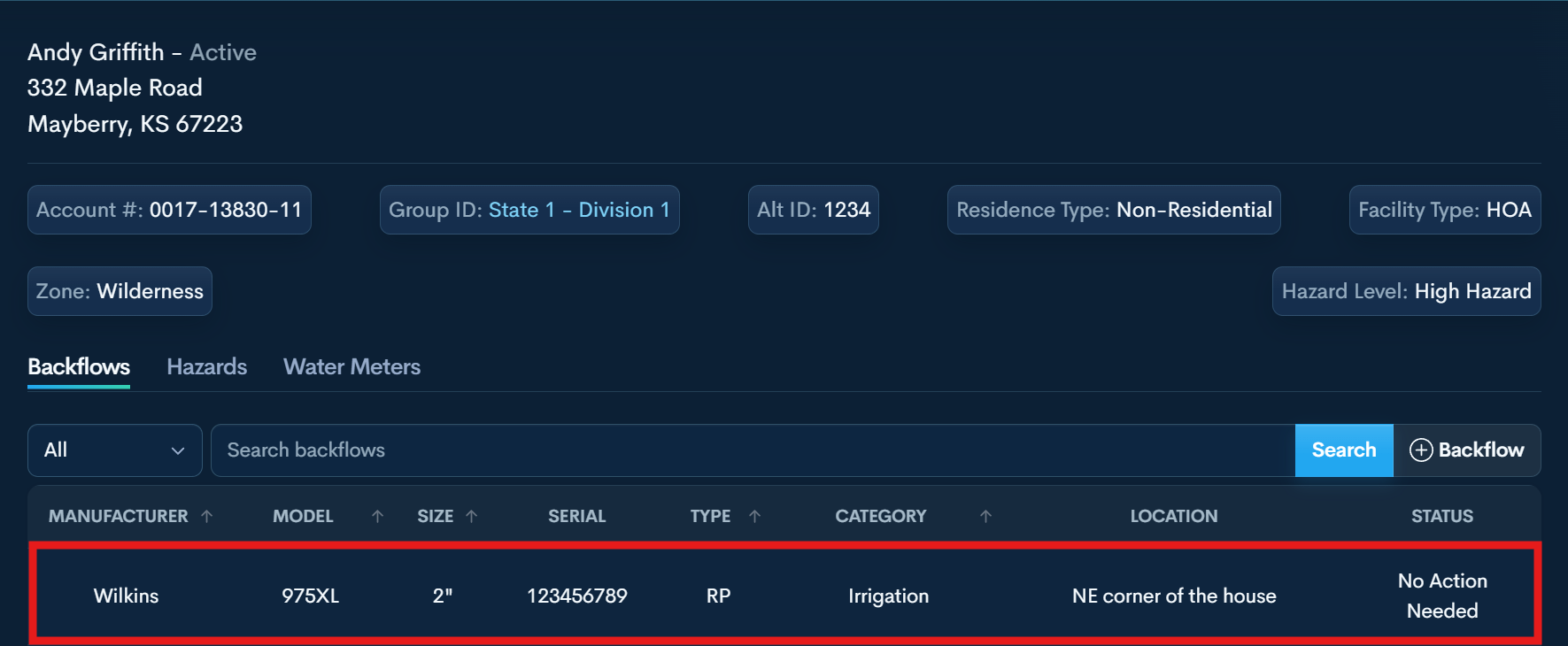
Step 5— Select Device
Once you search the customer address, or search by Serial Number, clicking on the desired device will reveal its options.
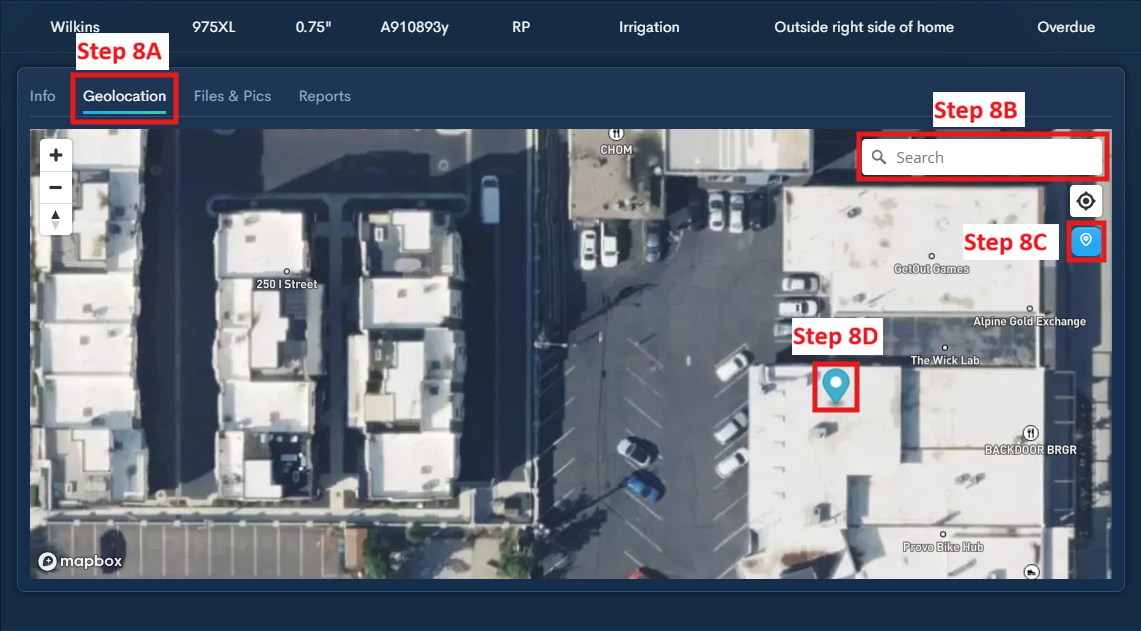
Step 6 — Complete Geolocation (If Required) IF NOT, SKIP TO STEP 9
8A - Select Geolocation under the desired device.
8B - If not onsite, search for the address to pull it up on the map.
8C - This button will place the GPS marker for the device.
8D - Once the marker is placed, you can click on it to move it to the desired location. It saves wherever you leave it.
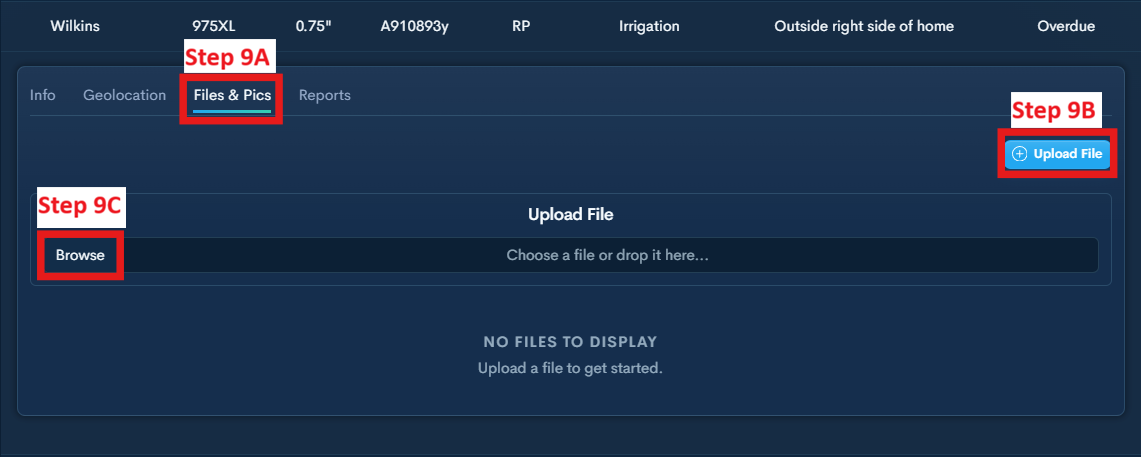
Step 7— Add Photo (If Required) IF NOT, SKIP TO STEP 9
Upload a photo if the purveyor requires at least one per device.
9A - Select Files & Pics under the desired device.
9B - Select Upload File.
9C - Select Browse to open file explorer to select photo.
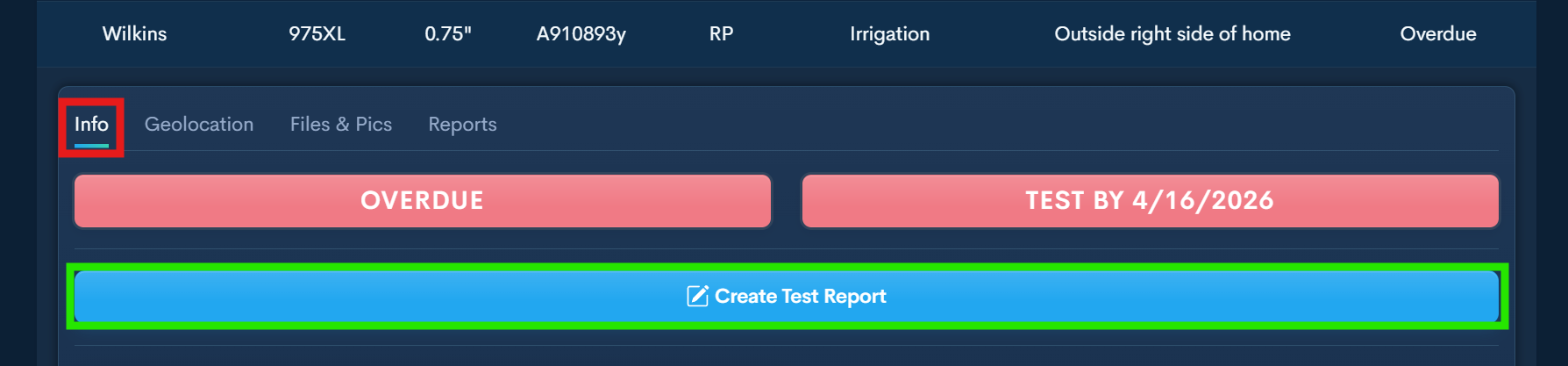
Step 8 — Create Test Report 📝
Click the Info tab then click Create Test Report.
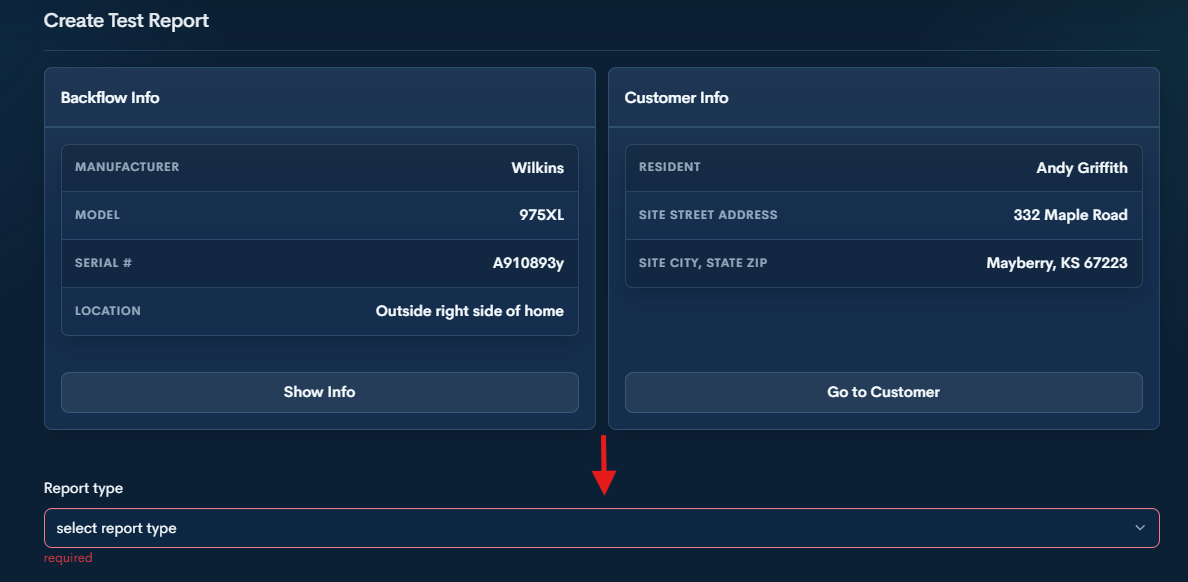
Step 9— Select Report Type
Select the Report Type that matches the situation for the device:
Recurring Test
Use for a standard annual backflow test.
Rebuild and Test
Use when the device was rebuilt and then tested.
Repair and Test
Use when the device failed the initial test, repairs were completed, and the device was tested again.
Removed and Replaced Device
Use when the existing device was replaced with a new one. You will need to enter the new device information and complete the test.
Removed Device and Capped Line
Use when the device was completely removed and the line was capped.
Step 10 — Complete Test Form
Enter readings, select your pressure gauge, and complete all required fields.
Step 11 — Sign and Submit
Add your signature, check the confirmation box, and click Submit.
If anything is missing, complete the highlighted fields and submit again.
