

Company Profile: Proxy Tester to Submit a Report
Step 1 — Log In to Your Company Profile
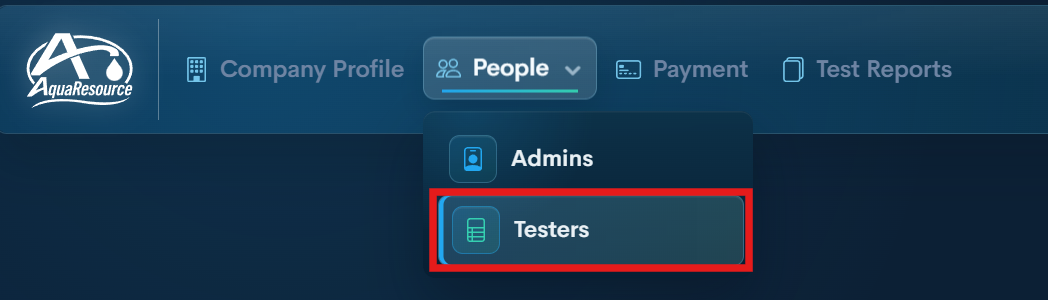
Step 2 — Open Testers
Click People, then Testers, on the top menu
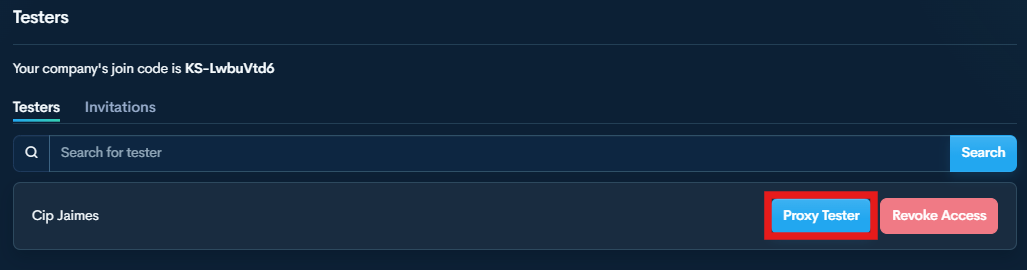
Step 3 — Select Proxy Tester
Find and select the tester you want to Submit a Test for.
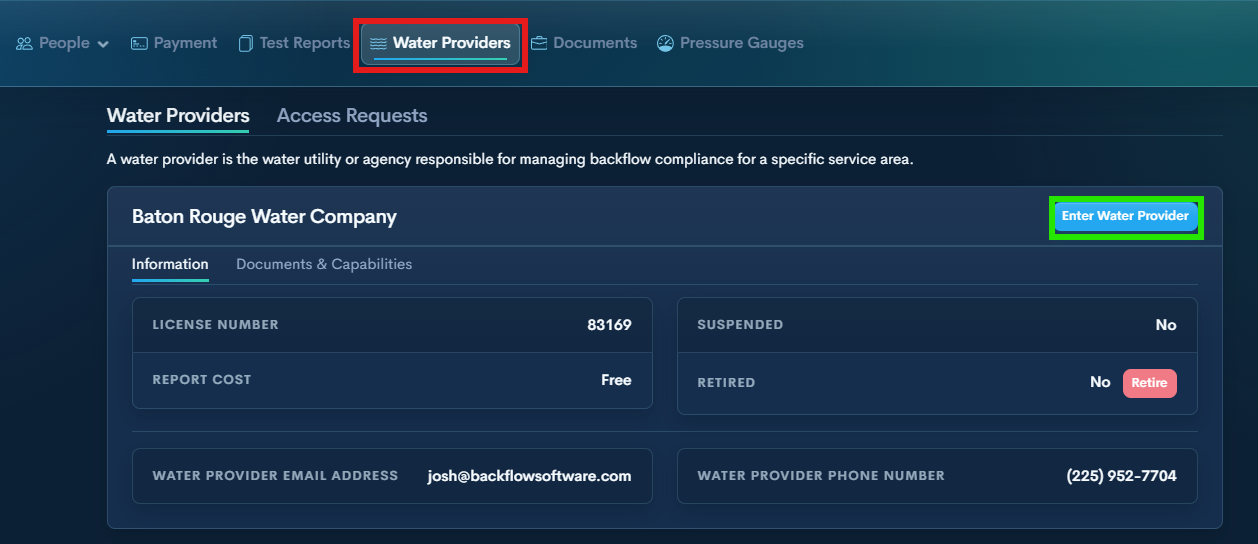
Step 4 — Open Water Providers
Step 5 — Select Enter Water Provider
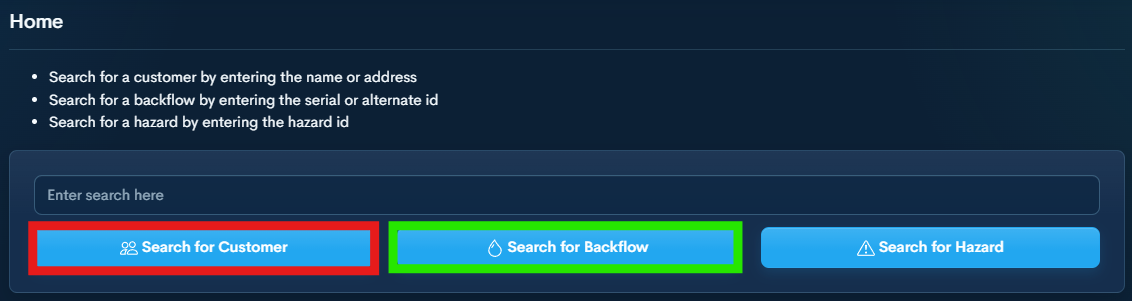
Step 6 — Search for Device
Search by Customer Name, Address, or Device Serial Number
Search for Customer will allow you to see all devices under that address. Then you will select the device you are looking for.*
Search for Backflow will pull up the existing device, selecting it will reveal the options for that device.
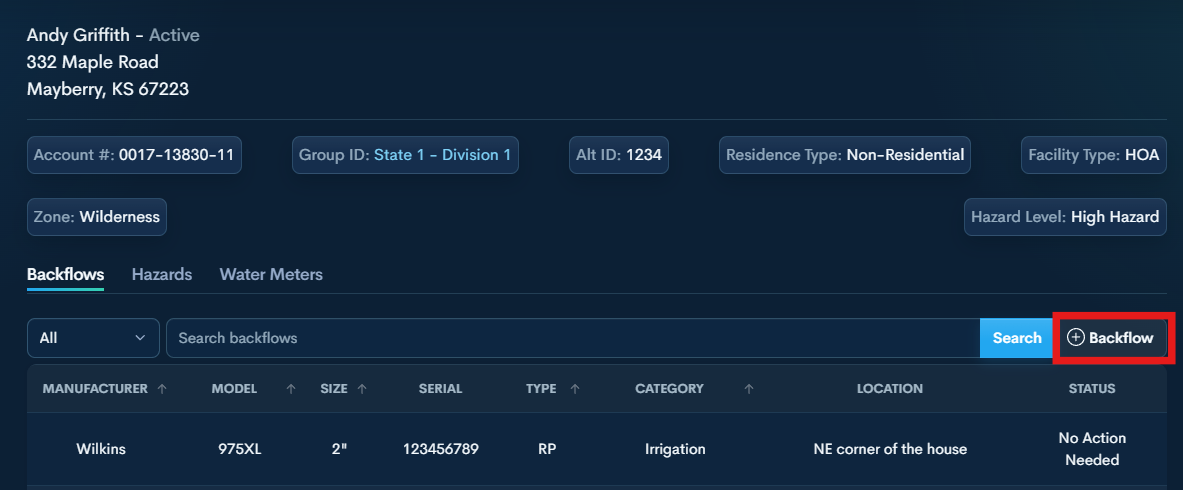
*If the device cannot be located using either search method, and the utility allows device additions, you may add the device through the customer/address profile.
Use the +Backflow button shown in the second illustration to enter the new device information.
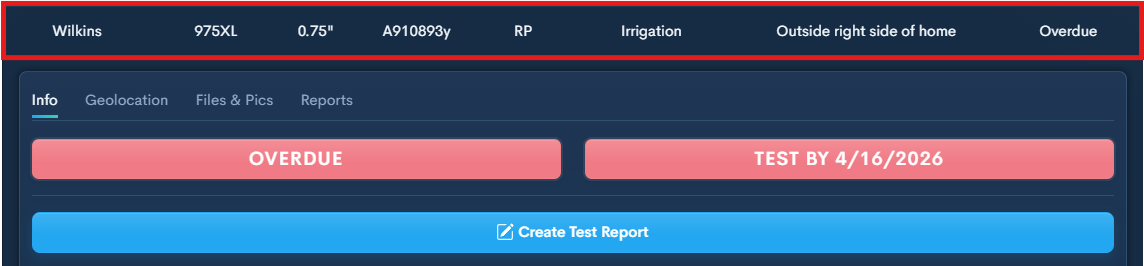
Step 7— Select Device
Once you searched the customer address, or searched by Serial Number, clicking on the desired device will reveal its options.
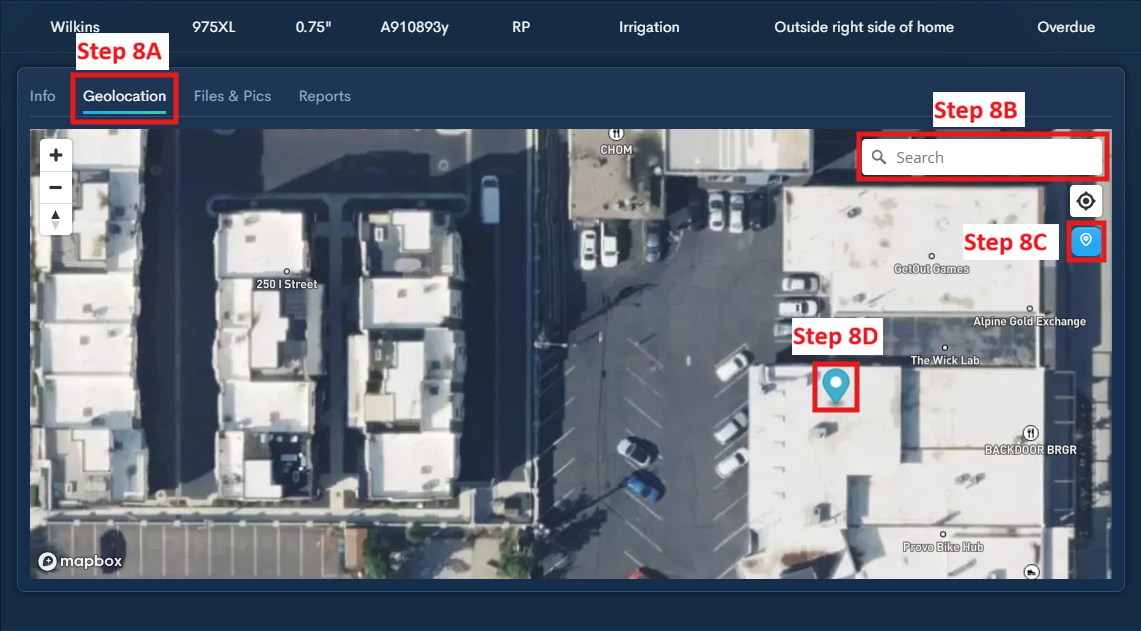
Step 8— Add GPS Marker (If Required) IF NOT, SKIP TO STEP 10
8A - Select Geolocation under the desired device.
8B - If not onsite, search for the address to pull it up on the map.
8C - This button will place the GPS marker for the device.
8D - Once the marker is placed, you can click on it to move it to the desired location. It saves wherever you leave it.
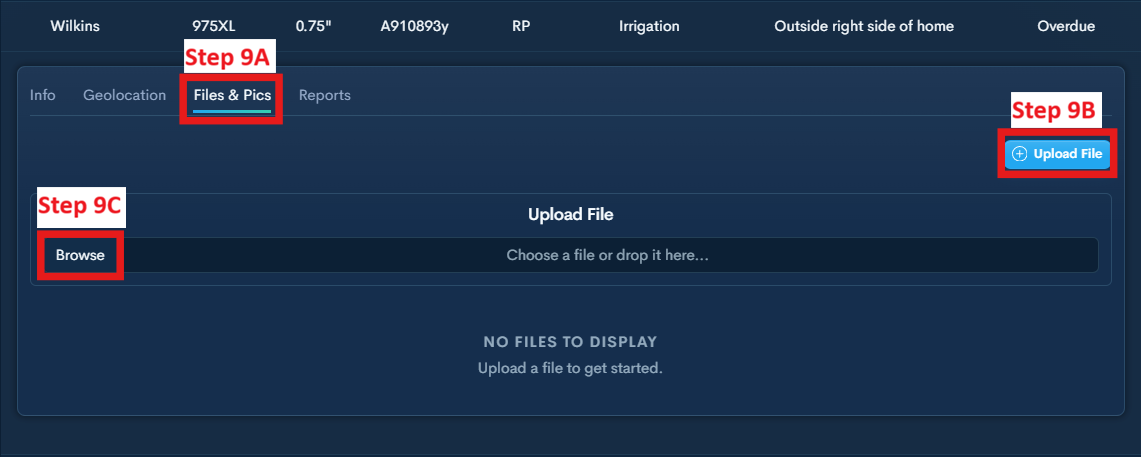
Step 9— Add Photo (If Required) IF NOT, SKIP TO STEP 10
Upload a photo if the water provider requires at least one per device.
9A - Select Files & Pics under the desired device.
9B - Select Upload File.
9C - Select Browse to open file explorer to select photo.
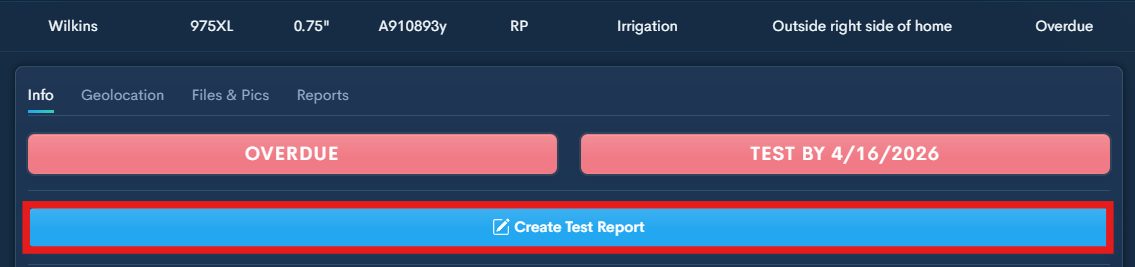
Step 10 — Create Test Report
Click Create Test Report
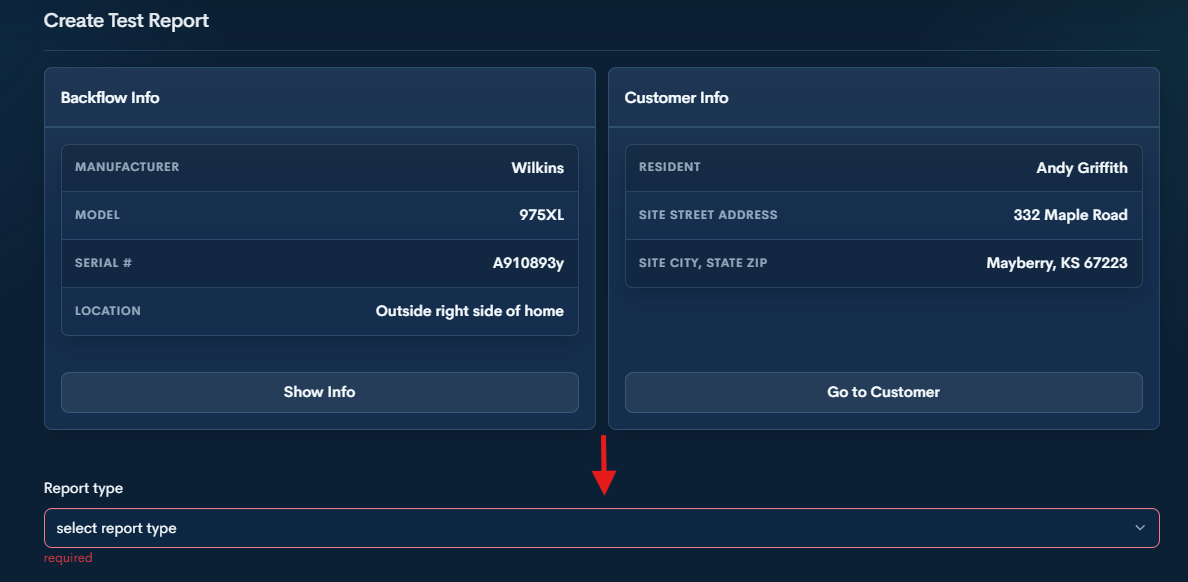
Step 11 — Complete the Report
Select the Report Type that matches the situation for the device:
Recurring Test
Use for a standard annual backflow test.
Rebuild and Test
Use when the device was rebuilt and then tested.
Repair and Test
Use when the device failed the initial test, repairs were completed, and the device was tested again.
Removed and Replaced Device
Use when the existing device was replaced with a new one. You will need to enter the new device information and complete the test.
Removed Device and Capped Line
Use when the device was completely removed and the line was capped.
Step 12 — Sign and Submit
Fill out everything required in the desired report.
Sign Testers name and Submit.
