Company Profile: Invite a New Tester
Use this process to invite a tester who does not yet have an AquaResource account.
Do not send an invitation to a tester that already has an AquaResource account.

Step 1 — Open the Testers Page
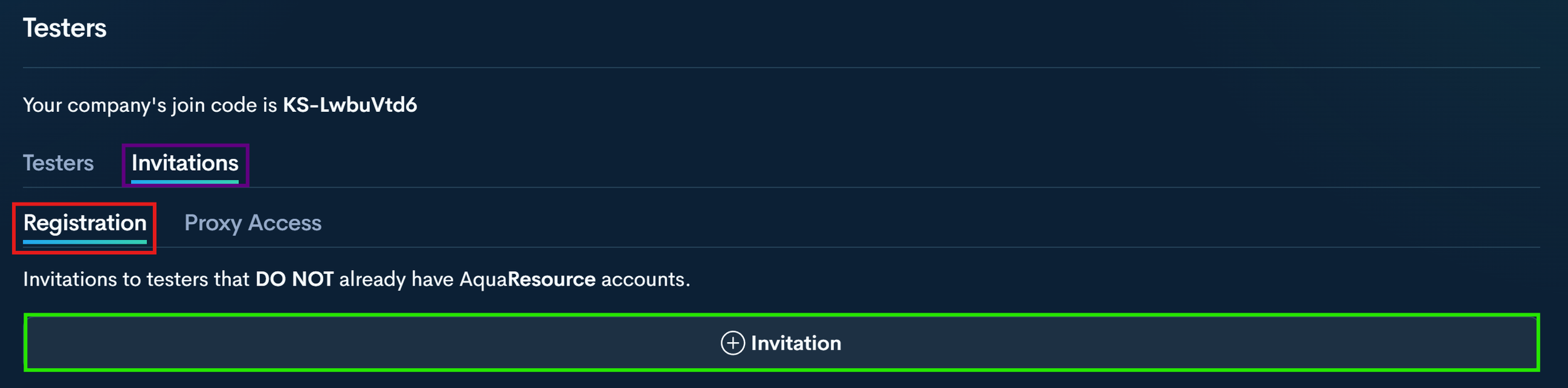
Navigate to the Testers section within your company profile.
Step 2 — Open Invitations
Click the Invitations tab at the top of the page.
Step 3 — Select Registration
Under Invitations, select the Registration tab.
Step 4— Click + Invitation
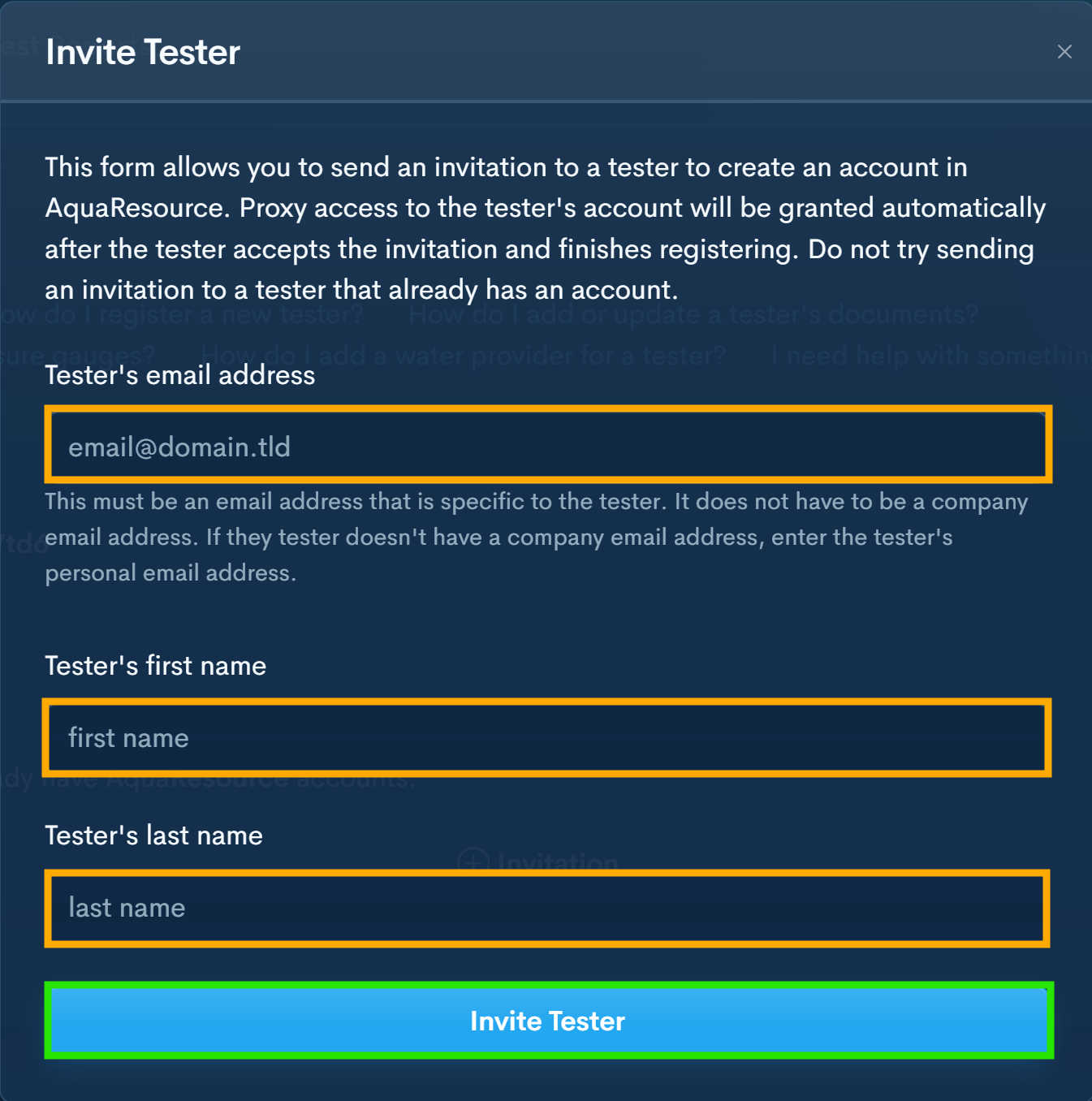
This will open the Invite Tester form for registration invitations.
Step 5 — Enter Tester Information
Enter the tester’s email address, first name, and last name.
The email address must belong to the tester. It does not need to be a company email. If the tester does not have a company email, enter their personal email address.
Do not send an invitation to a tester that already has an AquaResource account.
Step 6 — Click Invite Tester
The tester will receive an email to create their account. Once registration is complete, they will be added to your company with proxy access enabled.