

Add Photos to a Backflow Device
• Purveyor may require photos before accepting reports
• Photos only need to be added once unless updates are needed
• Best practice: capture the full device and surrounding area

Step 1 — Search for Customer or Device 🔍
Search by:
• Address
• Customer name
• Backflow Serial / Alt ID
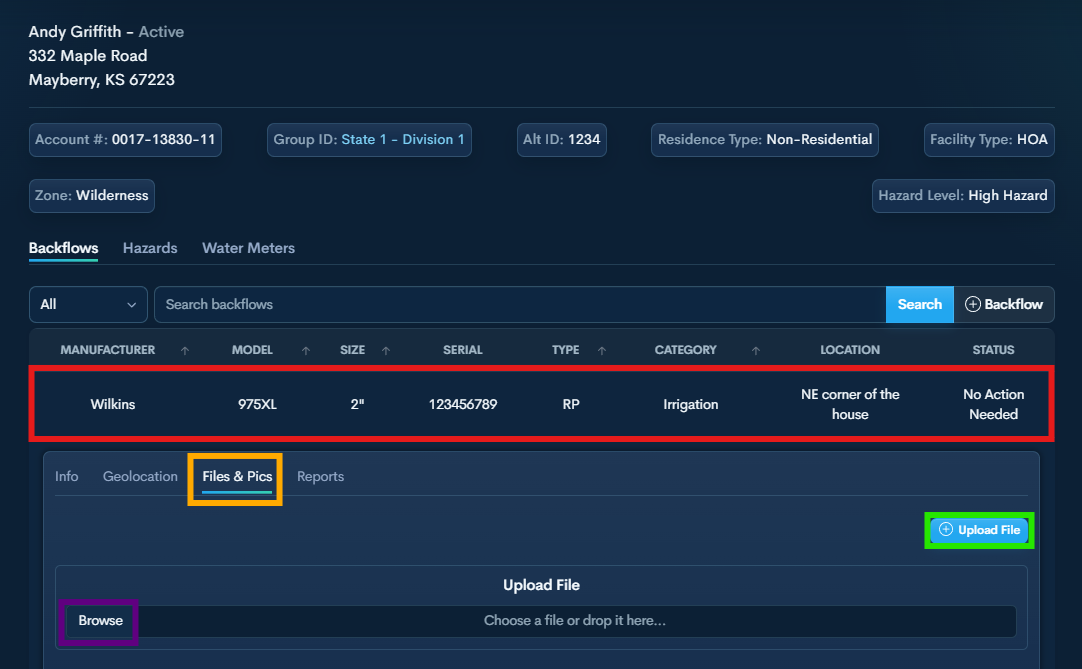
Step 2 — Open the Backflow Device Information
Click into the Customer Profile or select the Backflow Device directly.
Click the device to expose available actions.
Step 3 —Click Files & Pics
Step 4 — Upload or Take Photos
Use one of the following:
• Drag and drop photos into the upload area
• Click Browse to select files from your device
• On mobile: selecting Browse will prompt you to take a photo or choose from your camera roll
Step 5 — Confirm Upload ✅
Once uploaded, photos will appear in the preview area.
They are now saved to the device record.
Step 6 — Continue ➡️
Photos are now attached to the device.
Proceed with reports or other actions.
