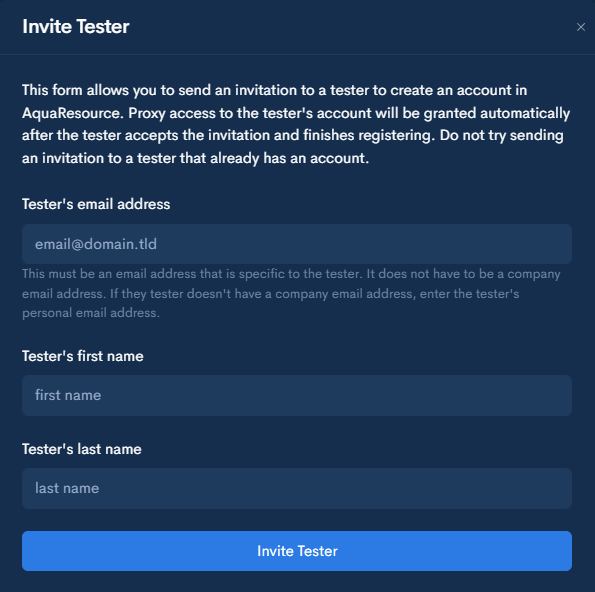

Company Profile: Invite a New Tester
Use this process to invite a tester who does not yet have an AquaResource account.
The tester will receive an email to complete registration. Once finished, they will be automatically added to your company and proxy access to their account will be granted.
Do not send an invitation to a tester that already has an AquaResource account.
Step 1 — Open the Testers Page
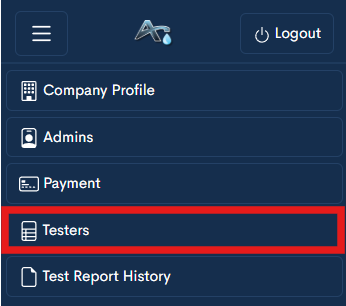
Navigate to the Testers section within your company profile.
At the top of this page, you will see your company’s join code.
This code can be shared with testers if they are registering on their own, but is not required when sending an invitation.
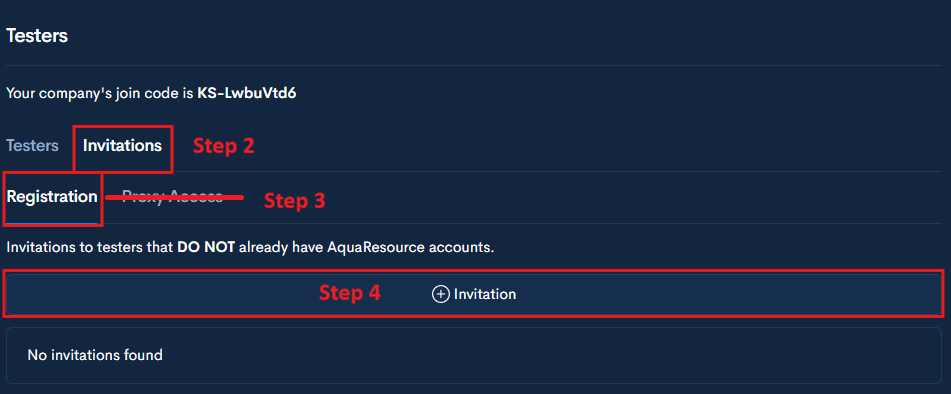
Step 2 — Open Invitations
Click the Invitations tab at the top of the page.
This section is used to manage tester invitations.
Step 3 — Select Registration
Under Invitations, select the Registration tab.
Step 4— Click + Invitation
This will open the Invite Tester form for registration invitations.
Step 5 — Enter Tester Information
Enter the tester’s email address, first name, and last name.
The email address must belong to the tester. It does not need to be a company email. If the tester does not have a company email, enter their personal email address.
Do not send an invitation to a tester that already has an AquaResource account.
The tester will receive an email to create their account. Once they complete registration, proxy access to their account will be granted automatically.
Step 6 — Send the Invitation
Click Invite Tester.
The tester will receive an email to create their account. Once registration is complete, they will be added to your company with proxy access enabled.