

Individual Tester Profile Registration Checklist
For individual testers (self-employed).
Company Admin managing multiple testers? See Company Profile Admin guide
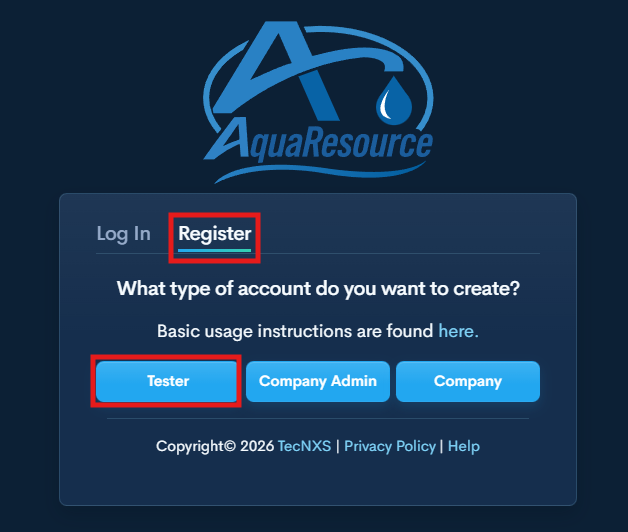
Step 1 — Create Your Tester Profile
→ AquaResource Login
Click Register → select Tester.
Enter your information and click Register.
You will be automatically logged in.
Step 2 — Verify Your Email
Open the verification email and click Verify Email.
Required before requesting access to any water provider.

Step 3 — Upload Required Documents
Top Menu → Documents
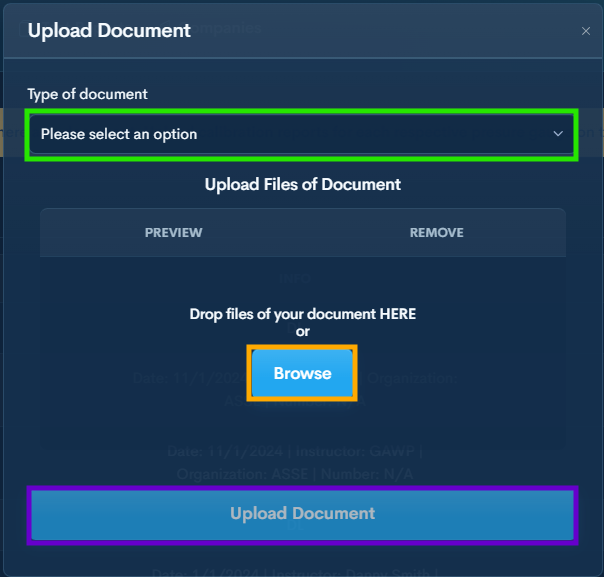
Click +Document
Set document type to Certificate
Browse to open your file explorer and select your Backflow Testing Certificate
Once the file is selected click Upload Document
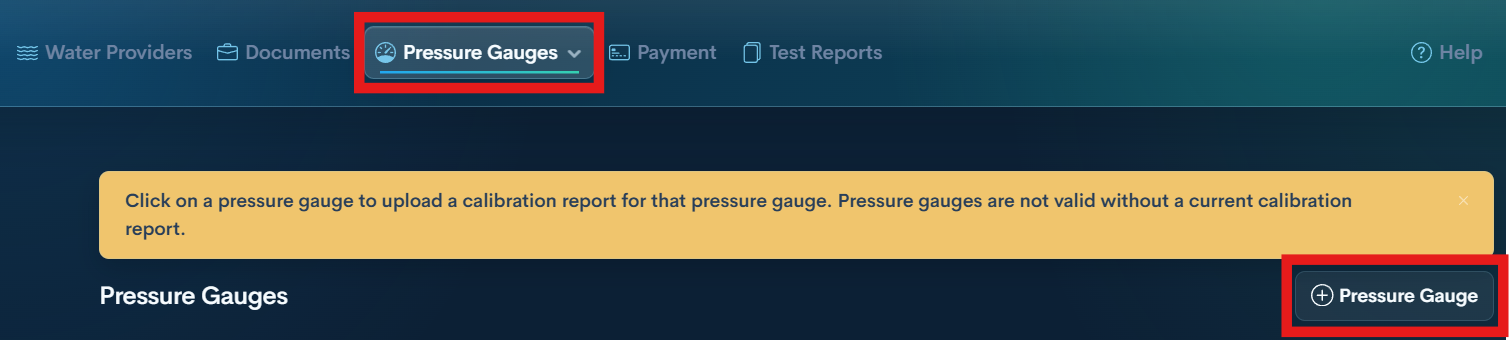
Step 4 — Add Pressure Gauge
Top Menu → Pressure Gauges
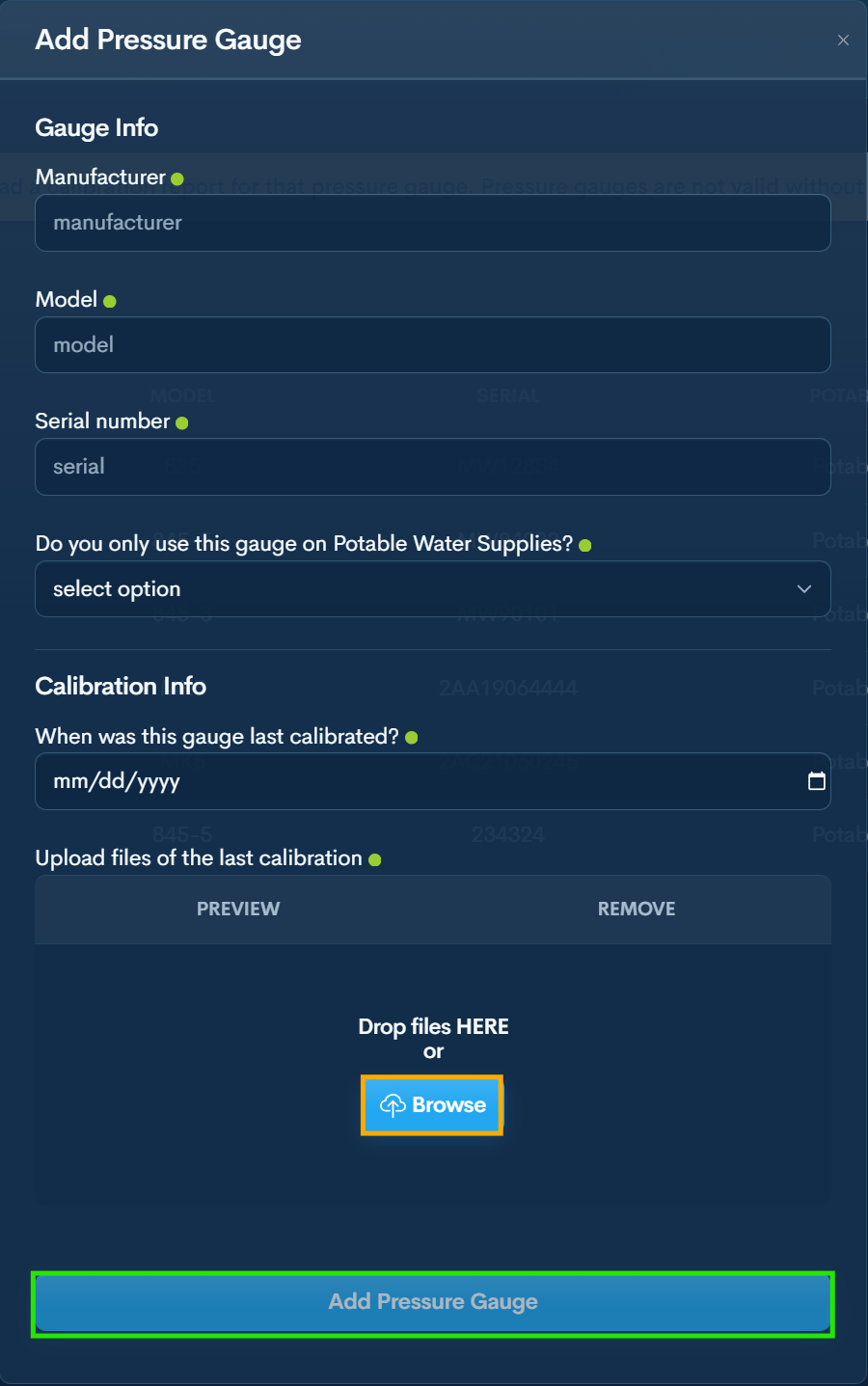
Click + Pressure Gauge
Enter pressure gauge details
Browse to open your file explorer
Once the file is selected click Add Pressure Gauge
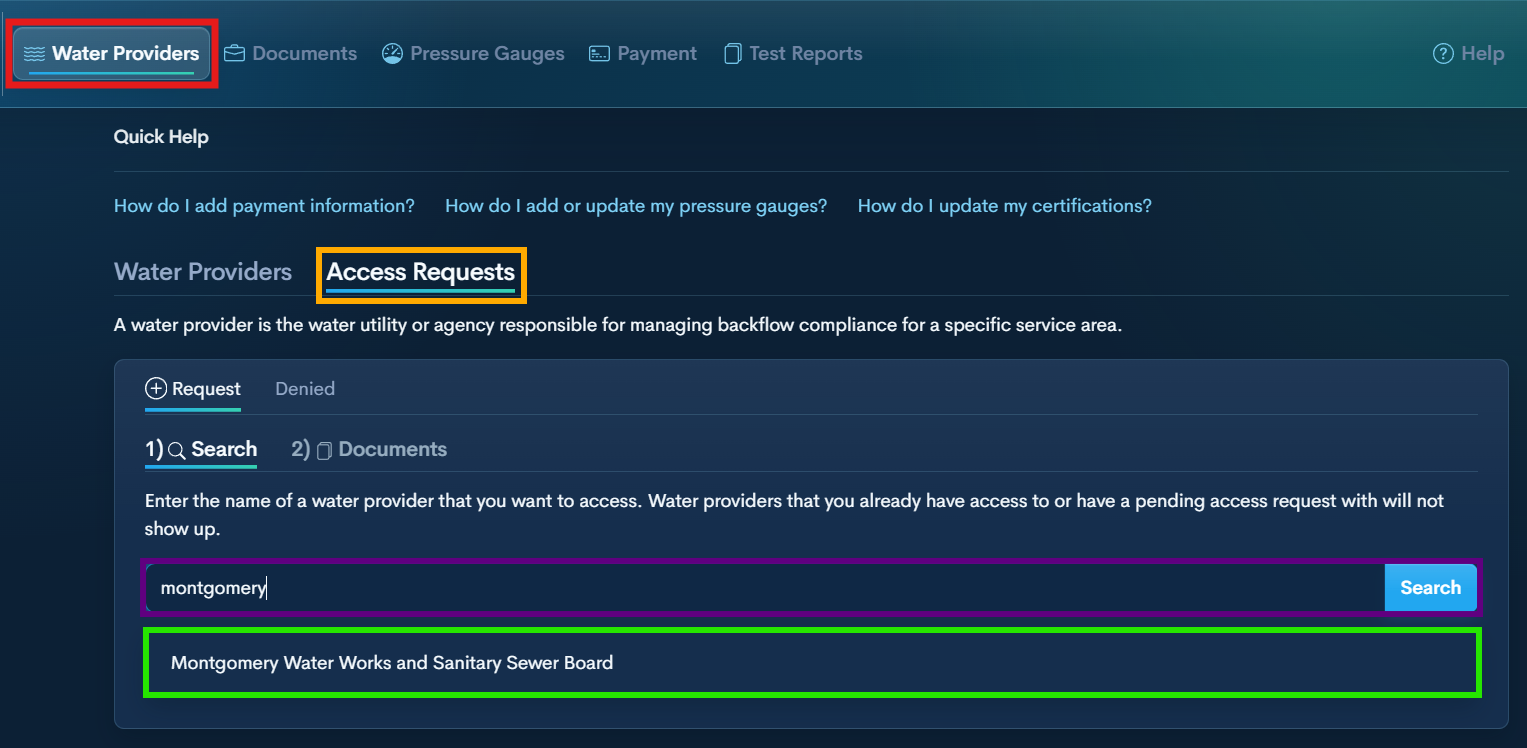
Step 5 — Request Access to a Water Provider
Water Providers → Access Requests
Search and Select the Water Provider
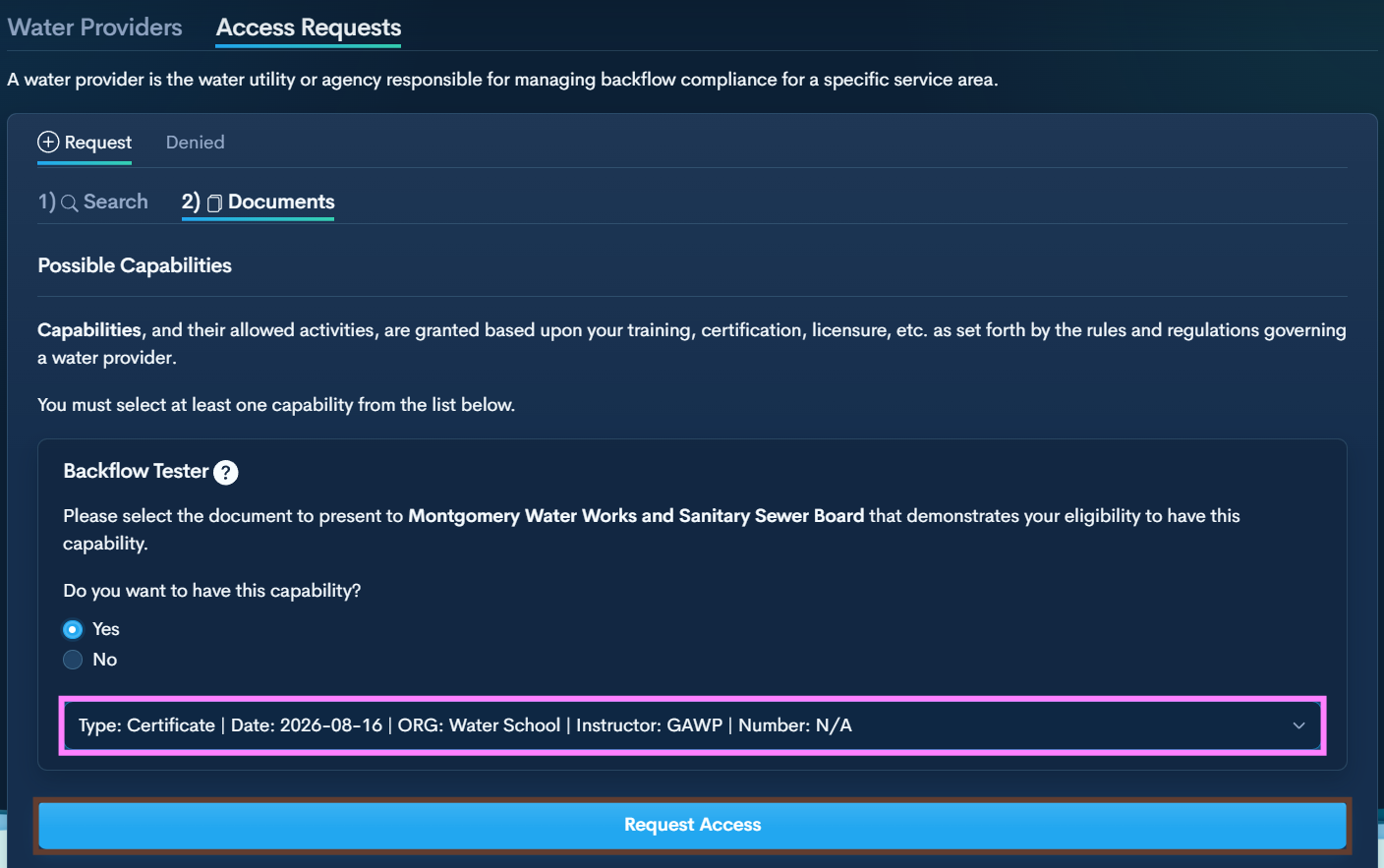
Select Yes for Backflow Tester
Choose your certificate from the dropdown
Click Request Access
Water Provider must approve before you can submit reports.
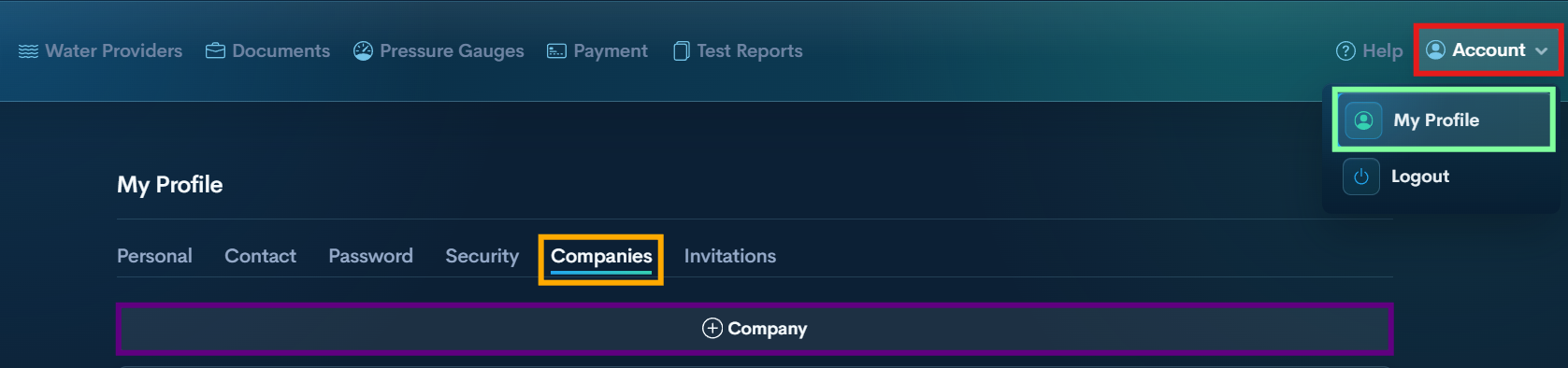
Step 6 — Add Company (Optional)
Account→ My Profile → Companies → +Company
Enter company information and save
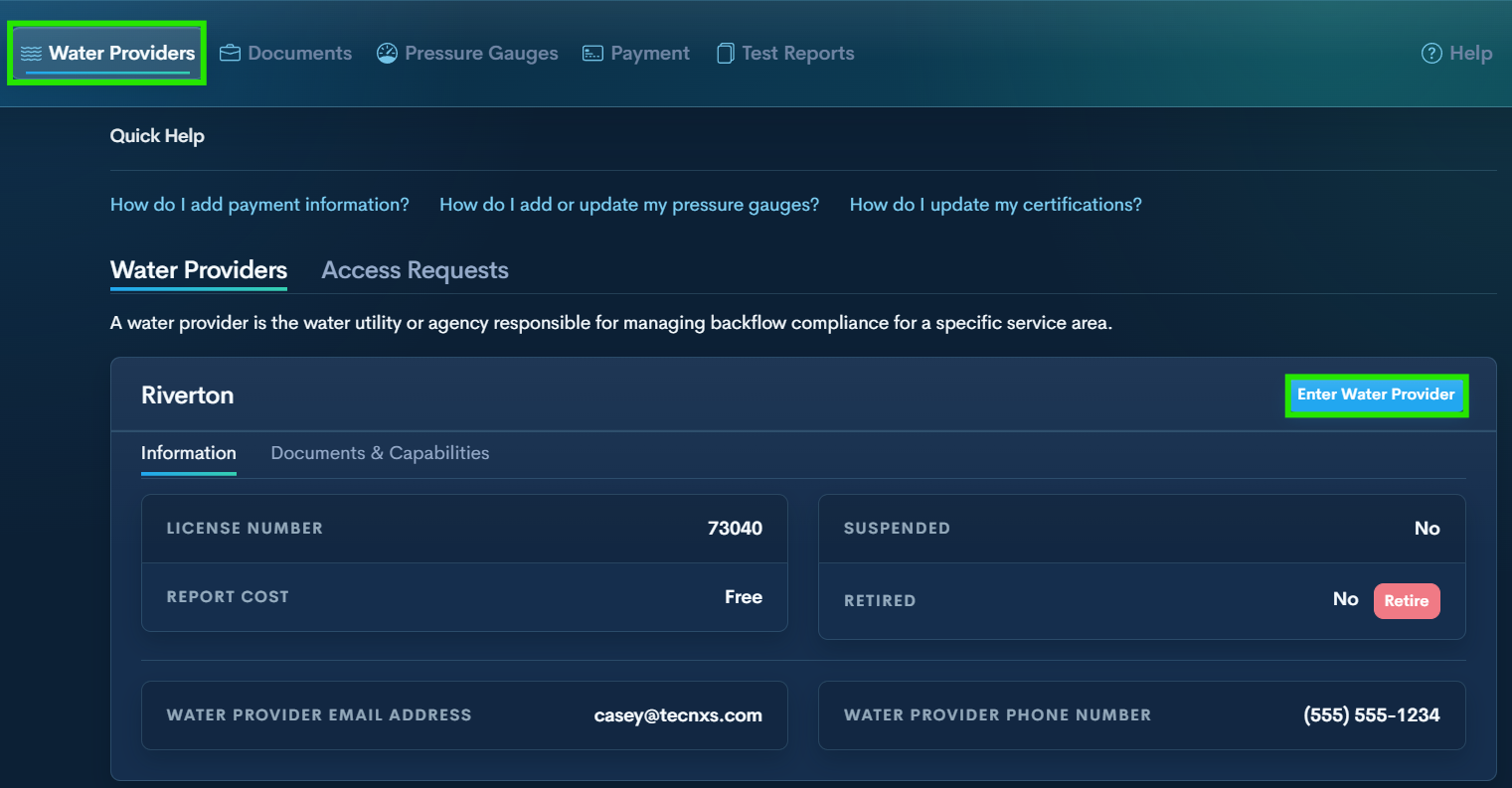
Step 7 — After approval by the utility Add Payment Method (If Required)
Water Providers→ Enter Water Provider
Click Enter Purveyor
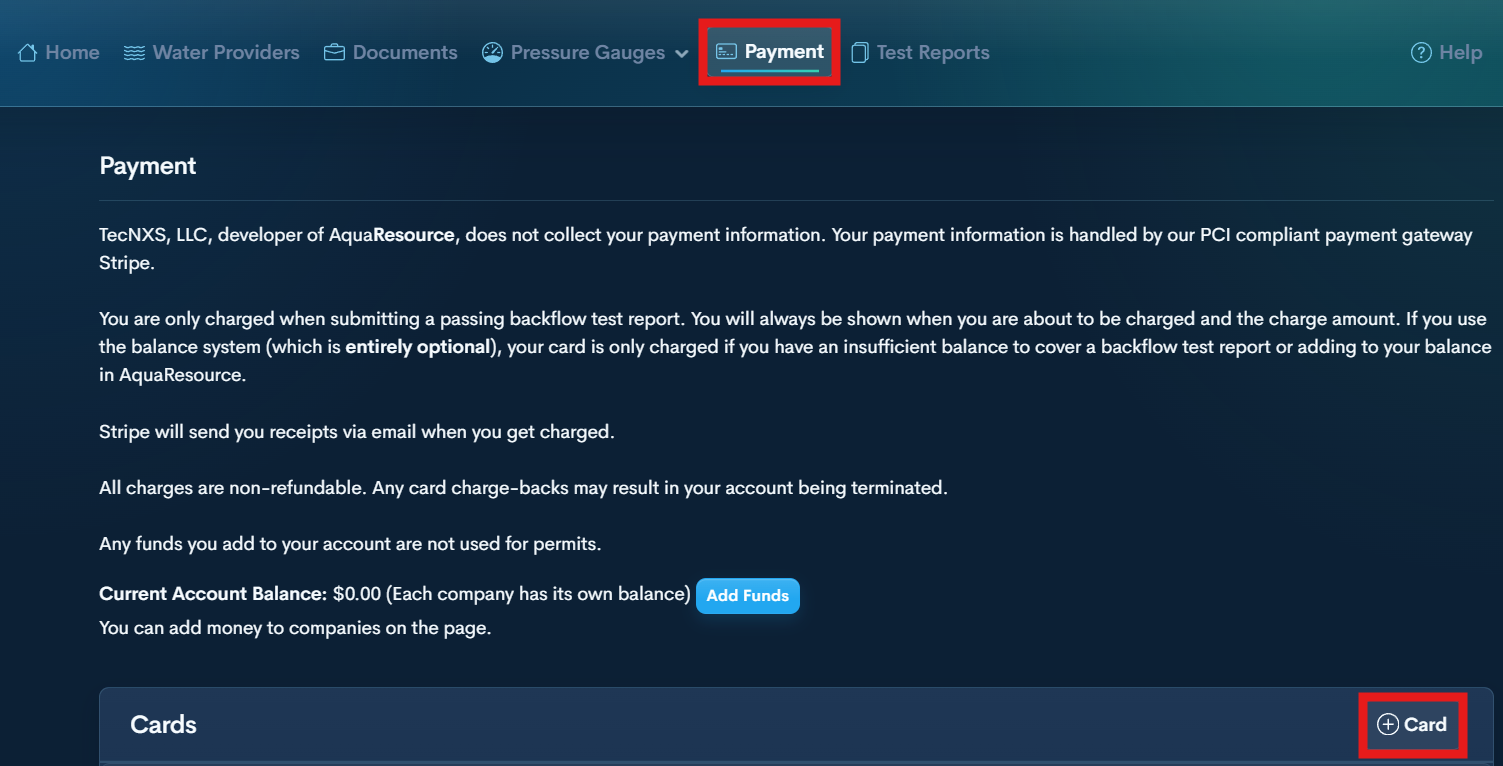
Top Menu → Payment
Click +Card to add card details.
Assign to company if needed
