

Add or Update Payment Method
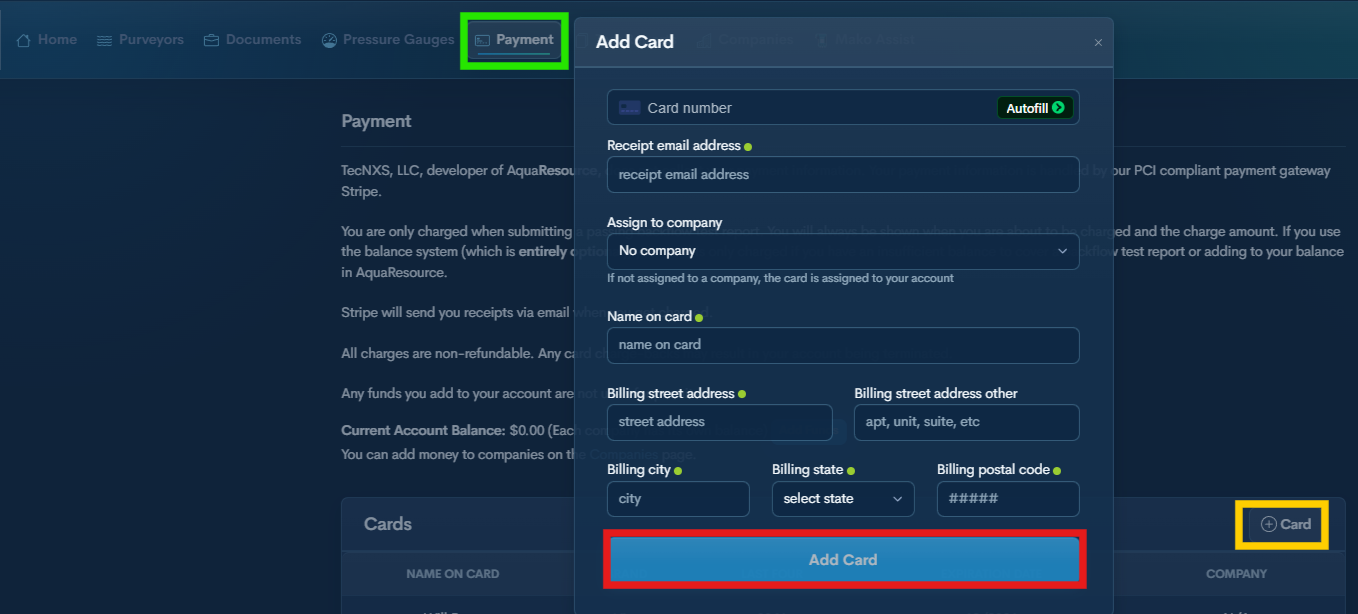
Step 1 — Open Payment
Select Payment from the top menu.
Step 2 — Click +Card
Enter:
• Billing information
• Receipt email
• (Optional) Assign the card to a company*
*Add the company if it has not been created:
• Go to Menu → Companies
• Return to Payment and select the company when adding or editing the card
Step 4 —Click Add Card
Once added, the card is available for test report submission fees.
Add Funds to a Company (Optional)
Add funds to your company balance to avoid per-test transactions. You must “Enter Water Purveyor” before adding funds.
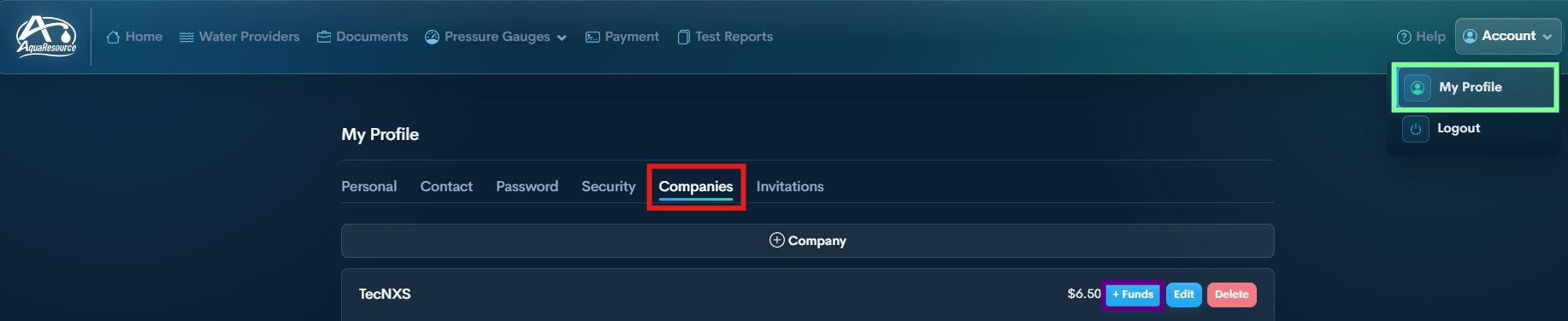
Step 1 — Go to My Profile
Step 2 —Select Companies from the top menu.
Step 3 — Find the company and click+ Funds.
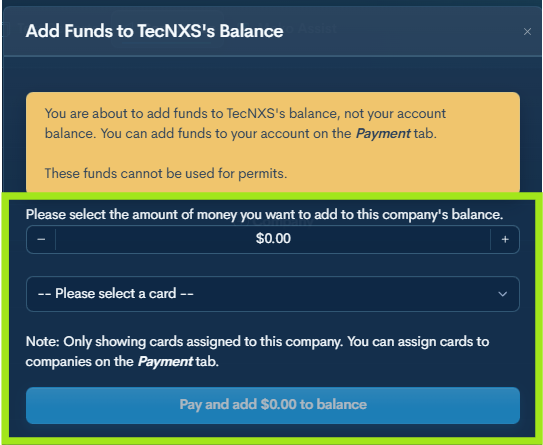
Step 4 — Complete Payment and add to balance
Select amount using + / −
Choose assigned card
Click Pay and Add
After selecting the company in the test report, those funds will be available when submitting a passing report.
